Product docs

See exactly what
you can change.

Explore the four workspaces that make up Win11 Desktop Customiser. Each one focuses on a familiar Windows detail, so you can make a clear change and get back to work.

These are real app screens, not interface mock-ups. Open any image for a closer look at the controls in that workspace.

01

Display & Background

Give every display its own place in the setup.

See the monitors Windows currently detects, choose an image for each one and check the crop before you apply it.

  • Choose a background for every connected display.
  • Use Fill or Fit and preview the crop before applying it.
  • Save a display scene for a familiar setup.
  • Switch a scene manually, on a schedule or with a hotkey.
  • Use Auto Apply to match saved backgrounds when displays connect, disconnect or move.
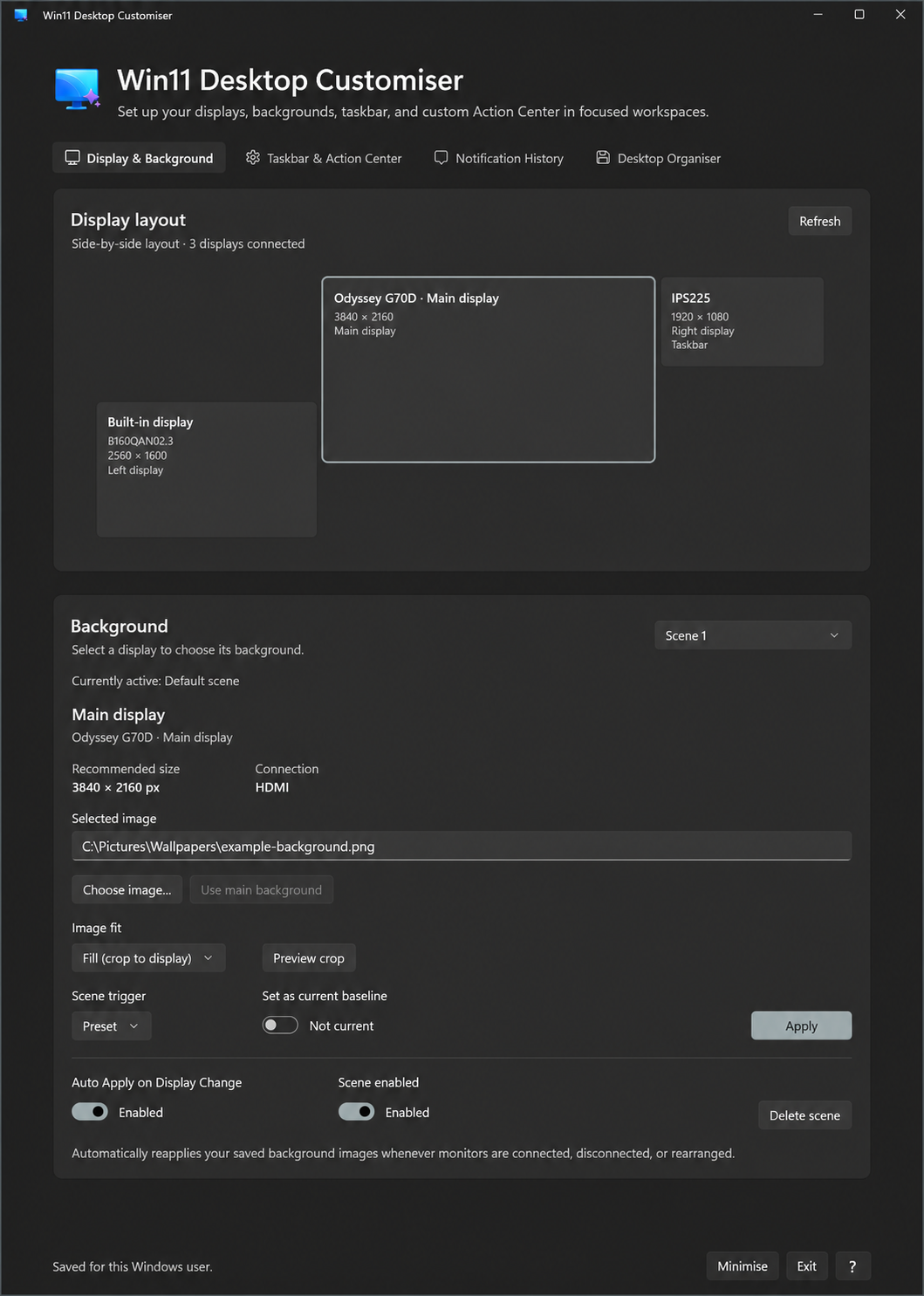
Win11 Desktop Customiser Display and Background workspace showing three connected displays, scene controls and Auto Apply.Open full size ↗
02

Taskbar & Action Center

Put the quick details where they help.

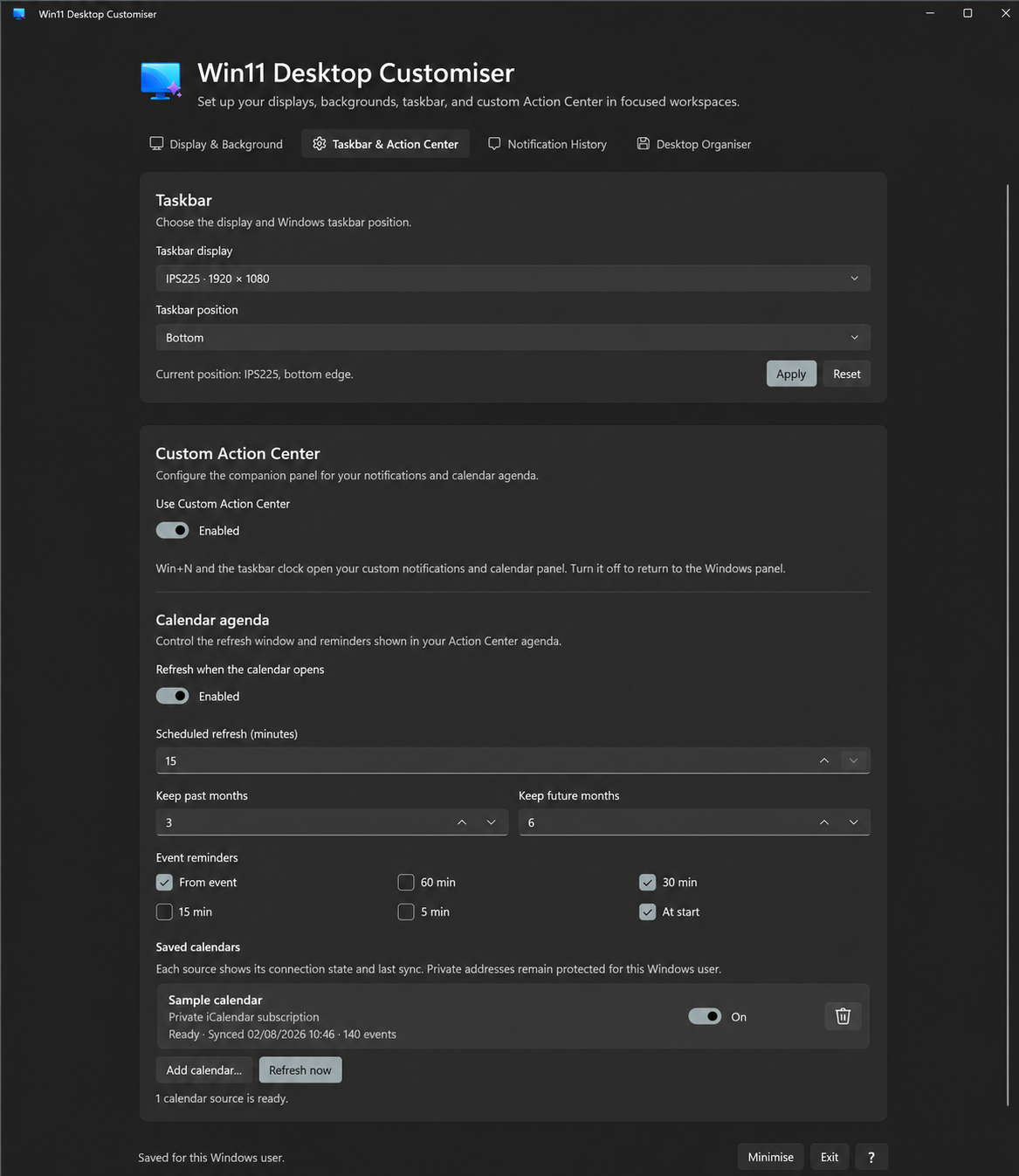
Choose a supported taskbar placement, then keep notifications and your calendar agenda together in the Custom Action Center.

Taskbar placement requirement: Windows 11 version 24H2, build 26100.4770 or later. The app also checks your local Windows build before enabling this build-specific control.

  • Choose a taskbar display and position on supported Windows builds.
  • Open the Custom Action Center for notifications and your calendar agenda.
  • Add Windows calendars, local .ics files and private HTTPS iCalendar subscriptions.
  • Choose refresh timing and event reminders for the agenda.
  • Keep unavailable build-specific controls clearly disabled rather than applying an unsafe change.
Win11 Desktop Customiser Taskbar and Action Center workspace showing taskbar placement and calendar agenda settings.Open full size ↗
03

Notification History

Keep the notifications worth returning to.

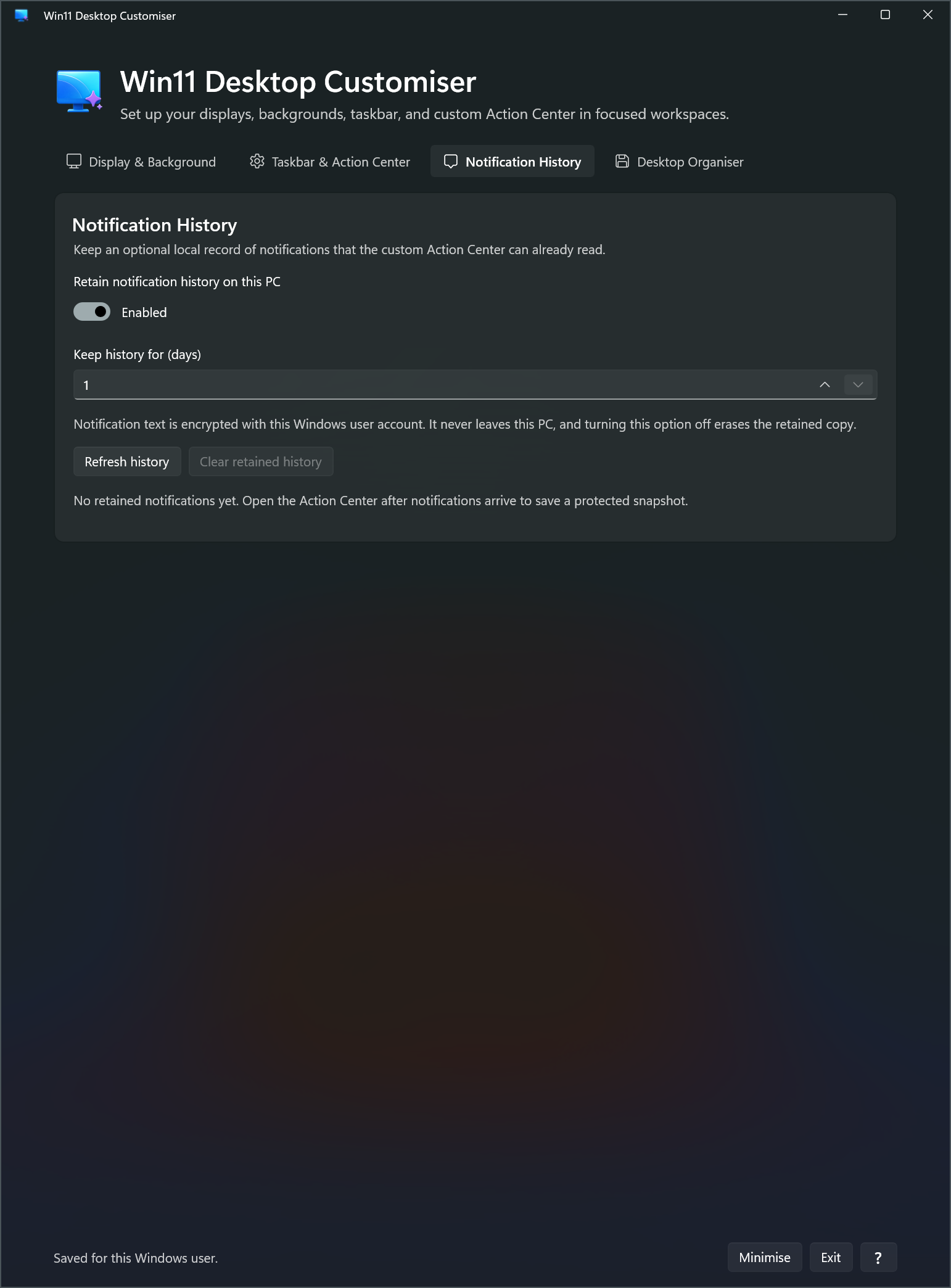
Notification History is optional. When enabled, it keeps a protected copy for the current Windows user and gives you direct control over how long it remains.

  • Turn local notification retention on or off.
  • Choose a retention window from 1 to 90 days.
  • Refresh the current Windows notification list.
  • Clear the retained copy whenever you want.
  • Keep retained history encrypted for the current Windows user.
Win11 Desktop Customiser Notification History workspace showing local retention settings.Open full size ↗
04

Desktop Organiser

Sort a busy desktop in one deliberate action.

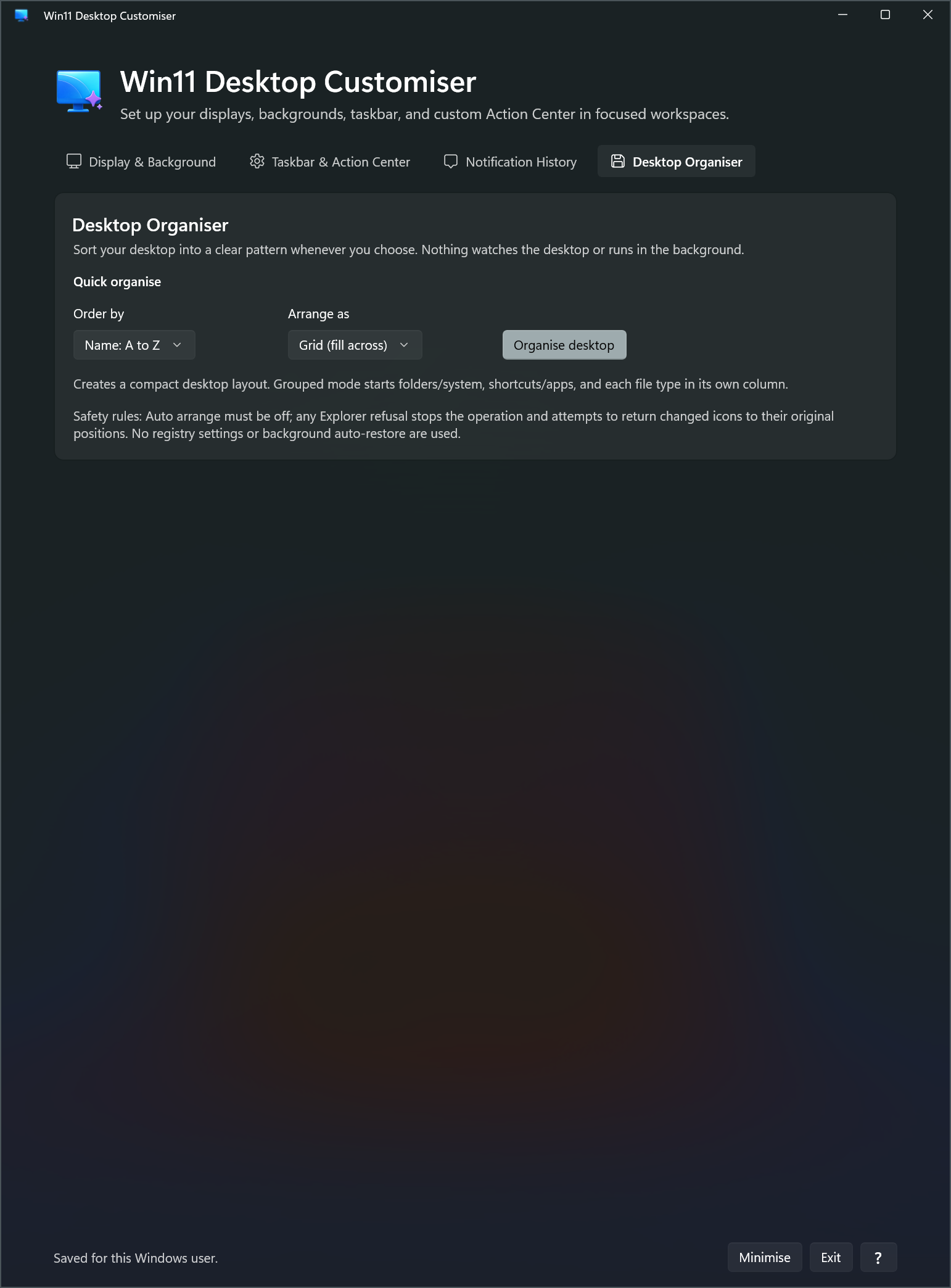
The organiser is an on-demand action, not a background service. Pick the sort and layout that suit the files in front of you, then run it only when you choose.

  • Sort by name, modified date, file type or folders first.
  • Arrange items in a grid, columns or grouped columns.
  • Run the change only when you choose Organise desktop.
  • Stop safely if Windows cannot apply the new layout.
Win11 Desktop Customiser Desktop Organiser workspace showing sorting and layout controls.Open full size ↗

Edition boundary

Start with the demo. Keep the full setup ready with the app.

Microsoft Store Demo

Try assigning a different background to each connected display. The other workspaces are shown as locked product areas and wallpaper choices are not retained after a Windows restart.

Full edition

Add scenes, Auto Apply, taskbar and Action Center controls, local notification history and Desktop Organiser when direct download becomes available.

Compare editions on the product page